Tuesday, August 16, 2011

tiggr + phonegap

INTRODUCTION

In this tutorial, we are going to use two great tools for building mobile apps, gotiggr.com and phonegap simulator. gotiggr.com is an essential development tool for UI development (even though the tool can be used to connect to data as well). But certain reasons that qualified the tool to only as a UI development as of now. First is that, free Domain Hosting Accounts (as tested on kodingen.com and 0fees.net) does not allow gotiggr.com's ajax 'GET' call. This means that when you test your gotiggr.com app even with tested REST Service, you still get an error message. The error described as 'Access-Control-Allow-Origin' which can only be set at the Apache server's config file. A file which is not accessible if you are a user of Domain Hosting Sites (unless if you're a Premium user and granted the inclusion gotiggr.com for its Access-Control-Allow-Origin entry or you have maintained your own online web server). Second, you will be required to go online if you would need to access a web resource. Which means that your local LAMP or LAPP stack can't be accessed during the development. While this kind of connection is desired during testing, it would be a burden during development primarily when the internet connection is down for some reasons and the delay of fetching the web resource is sometimes intolerable. So, gotiggr.com will suffice (as of now) as UI design tool.

On the other hand, the phonegap simulator will finish what the gotiggr.com has started -- giving life to the UI. The good news is that phonegap simulator can read the file from gotiggr.com and we can configure some files or code with it to connect to the local LAPP or LAMP stack.The phonegap simulator will also save us from "starvation" when starting the app. A thing that most of us will experience when running Android apps using Eclipse environment configured to execute phonegap apps (you may never experience this if you got the "nice" hardware spec).

Getting Ready

So, let start. If you have not done so already, create an account at gotigger.com. Unfortunately, I am not going to discuss on some how to's for that site you can explore it yourself. Then Download the Phonegap Simulator. You must also configure you LAMP or LAPP stack in your local machine. If you're into CGI programming, you must also configure your CGI server.

The Application

For this example, the application is so simple. It will just accept a name from an input box and display it on another text box (i.e., if input is Juan, then the output will be Hello Juan). The output will be requested from a web server.

Things to do

1. Design the UI at gotiggr.com a sample, Figure 1 is provided as the model UI (See the red outline labelled 1).


Figure 1. Sample UI.

2. After the design, export the source code by clicking on the Export (you should export it as a Phonegap project) button (see Figure 1 red outline labelled 2). All the necessary codes will be downloaded as a zipped file.

3. Extract the zipped file in your PC and we're moving on to Phase 2.
4. There are plenty of folders and files found in the extracted folder, but we only need to focus our attention to two files, they are located in the [zipfilename]/assets/www. The two files are the .html and .js, they are usually named as screen-[some number].html and screen-[some number].js. See Figure 2.


Figure 2. Contents of [zipfilename]/assets/www

5. Open the two files using your favorite editor. First, examine the html document and take note of the id's of the html elements. Let us first take note of the two text box id's, one of these text boxes will serve as the input and the other one is the output. For the sake of this example, the upper text box will be the input and the lower text box for the output. As seen in Figure 3, the id of the input box is j_4 and the id of the output box is j_6. These ids are automatically generated by gotigger.com.


Figure 3. Code fragment of screen-[some number].html


6. The screen-[some number].js will be modified to let our mobile app connect to a server and request some resource. Refer to Figure 4 for the additional code.


Figure 4. Function to request a resource from a server.


There are things to take note of req() function. The first thing is that the declaration of the variable name_ is followed by an assignment statement to get the value of the input text box which has the id j_4. Then, it was followed by the connection definition. At the url part, you can change orven.kodingen.com to localhost which represents your local LAPP or LAMP stack. name.php is the name of the resource we are requesting written in (as the name suggests) PHP. The data part is the parameter passed onto the PHP file, and the success part is where we write some callback function. A function which will be executed if the query is successful. Inside the onSuccess function is a one liner code to set output text box with id j_6 using the html attribute. Go back to screen-[some number].html look for the button element and write onclick='req();' to execute the function req() when the button is clicked. After saving all the changes to the two files it's time to start the Phonegap Simulator.

7. The simulator only needs to open the html file as all the necessary files will be loaded by the simulator automatically. On the Debug Panel, click on the open button (red box in Figure 5) to open the html file, you only need to click the play button (orange box in Figure 5) if you have made changes to your files.
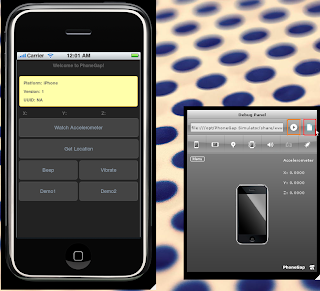

Figure 5. The Phonegap simulator.

8. Once the html file is loaded, it is time to interact with it. Write a name in the textbox and click the button. A sample interaction is shown in Figure 6.


Figure 6. A sample app interaction.

For the curious, the content of the name.php file is:


Hope this helps.

Source code is available here

Fin.

Friday, December 12, 2008

Verifying downloaded files

diff is a Linux command that will compare the contents of two files. At first you may not be able to appreciate its presence in Linux distros but it is one of the important Linux programs.

Consider the scenario when you are downloading something and the web site says it has a hash value (i.e, sha1sum, md5). This hash value will be used to verify whether the file you downloaded is OK (i.e., not corrupted.) If you are new to this stuff, you may wondering how in the world can I use such information for verification. Here's how.

After the download you need to compute for the hash value of the file. You can do it using:

for Fedora:
sha1sum
md5sum

for Ubuntu:
md5deep

In Fedora, you need to use sha1sum if sha1 hash is used by the distributors otherwise, md5sum. While Ubuntu got a "all in one" message digest program -- md5deep. Meaning it can compute md5 and sha1 hashes. Depending on the file size, these utilities might take a while to compute.

For our purpose, we need to redirect our output to a file. For example,

sha1sum Fedora-10-i386-DVD.iso > outfile.sha

We need to edit the output file (outfile.sha) so that we will just be focusing on the hash value. So, use your favourite editor and edit the output file. Remove anything that is not part of the hash. For example, this might be the output of computing the hash of Fedora 10 dvd;

086fd570518ac58d3966c43c1b6d146e38919d8d Fedora-10-i386-DVD.iso

the first part is the hash and the second part is the file name, the first part is the one we need. Remove the space following the first part and then the second part.

GO back to the web site that provided the hash value and save in another file (i.e., inetfile.sha). The two files, outfile.sha and inetfile.sha, must stored on the same path.

And this is now the time to use the diff utility. Issue the command:

diff outfile.sha inetfile.sha

If it returns nothing, then your downloaded file is OK otherwise you may need to re-download it.

Fin.

Wednesday, December 10, 2008

FATAL: WUBI!

Wubi is the program that allows Windows users to install Linux (specifically the Ubuntu distro) as if it is another windows program with the advantage of allowing Linux act as a separate operating system. As a matter of fact, after installation it even allow you to choose where to boot (i.e., Windows or Linux). Seems a happy ending? Nope.

One must have to be careful in trusting the installed Linux using Wubi, (let us create a name WuLinx to mean a Linux installed with Wubi) as it might be corrupted and you won't be able to recover important files inside WuLinx. Why? Isn't it true that Linux has this so called journalizing file system (ext3), that allows system recovery during some crashes? Yes it's true, and personally, I have experienced crashes before in a Linux operating system but because of this ext3 file system my Linux was able to recover. However, it's a different story on WuLinx because it uses the Windows ntfs file system. A file system native to Windows and hence, journalizing is impossible.

So, if you are using WuLinx -- you are already warned.

Finally, periodically create a backup copy of your files inside WuLinx.

Fin.

Monday, November 17, 2008

XAMPP on Linux

Linux has the best tools for LAMP (Linux, Apache, MySQL, PHP) servers, what you need to do is to get your hands "dirty" to set up these different beautiful tools to work as one. However, if you are just a developer and is used with "bundled" LAMP server where everything is set-up automatically, you would find getting your hands "dirty" is not your choice especially if there are many projects waiting to be done. Perhaps one of the famous "bundled" LAMP is XAMPP from Apache friends. In Windows, XAMPP is easily installed, just a matter of clicking the mouse as many times until the set-up is done. Starting the lamp server is quite easy and everything from that point will run smoothly (at least for the servers). The question is, can we have this done in a Linux system? The answer is YES! And perhaps many web developers just didn't realized that the comfort they experienced in Windows could also be experienced in Linux. Easy for me to say? Well, it is easy for you to do. In fact, this blog is about on dealing XAMPP for Linux. Here we go.

First things first, download the latest version of XAMPP for Linux here. For installation instructions you can read it here. Or you can simply follow the steps below, which is a slightly different version from the one found in the site:

1. Go to the directory where you downloaded the installer. For example, if it is downloaded in your Desktop the location would be /home/yourLinuxLoginName/Desktop. So, what you have to do is to start a terminal and issue a cd command to the path of the installer (i.e., cd /home/yourLinuxLoginName/Desktop).

2. Issue the command

sudo tar xvfz xampp-linux-1.6.8a.tar.gz -C /opt

The effect of this command is it will extract all the contents of the tar file to the directory /opt directory. The sudo will make the command a super user command. This is necessary because the user that has a write access to the opt directory is only the super user. In Ubuntu, the first account created during the installation is automatically added in the sudoers file. But this is not the case with Fedora, to add a user in the sudoers file follow this link.

3. Starting XAMPP is quite easy, you just have to issue the command:

sudo /opt/lampp/lampp start

Stopping is quite easy as well, just replace the start with stop.

4. Now that you have everything set-up what's next? You can now start accessing the XAMPP page by opening a browser and typing the address localhost in the address bar. If everything worked out correctly, you would see similar screen below:


5. The default XAMPP web site files are found in /opt/lampp/htdocs/xampp. You need to modify this directory so you can start working on your web sites. Some of you might want to delete the xampp web site and replace it with your own. But this tutorial will preserve that directory.
In order to have full access to the directory, issue the command:

For GNOME:
sudo nautilus /opt/lampp/htdocs/xampp

For KDE:
sudo konqueror /opt/lampp/htdocs/xampp

For XFCE:
sudo thunar /opt/lampp/htdocs/xampp

This command will open the directory in GUI mode. (Remember that only super user has all access to the /opt directory, hence we included sudo in our command.) Initially you'll see this kind of information window:


Since we need to preserve the XAMPP web site files we need to create a container for these files -- we have to create a directory and we can call it xampp-install. So, right-click the opened directory and click Create Directory and type the name xampp-install.


Transfer all the files into xampp-install directory, after doing that what will be left is only the directory we created.


This will also change the display of your browser, if it is already opened click reload or refresh and you'll see a similar window below:


Clicking on the link will let you browse again the previous website contents only with minor difference. But don't worry everything else is alright.

To add a website of your own, create a directory for that site. Say, we want to create a folder named myfirstweb. And then, put all your web site files in this directory. If you are going to refresh the browser you would see:


The directory we created appears as a link in the site. To view the site click on the link. In my example I created a simple page to display "Hello World".


Fin.

Sunday, November 16, 2008

Dealing with RAR files

Fedora or Ubuntu can handle many compressed file formats. By default, it can handle tar.bz2, tat.gz, .zip etc but it cannot handle .rar files. So, uncompressing such file in both systems cannot work. Fortunately, both these Linux distros support unrar program. This program will allow the possibility of accessing rar files in your Linux Box. To install, do:

For Fedora:
sudo yum install unrar
For Ubuntu:
sudo apt-get install unrar

After doing so, you can right-click any rar files and choose to "Extract Here", "Extract To", or "Open with Archive Manager".

Fin.

Monday, November 10, 2008

postgreSQL setup Fedora

Fedora has different ways of approaching things. And one of them is the setting up of postgreSQL database. Unlike in Ubuntu, Fedora requires the database administrator to set up things the way it expected them to be. The steps one might follow are:

1. Decide the location of the database directory,
2. Initialize the database using this connection,
3. Modify /etc/profile file, to start the database without requiring the -D option,
4. Modify pg_hba.conf
5. Start the database manually using pg_ctl.
6. Change postgres password.
7. Securing connections.
8. Start the database automatically.

Decide the location of the database setup

This is a file or directory organization issue, you can put the postgreSQL database anywhere you like as long as it does not require super user previlege and that you have access too. But for simplicity, let us assume that you wanted to put the database in the directory mypgdb in your local directory. So, if your linux user name is dbadmin, you might want to put the directory in /home/dbadmin/mypgdb. And since this directory is not created by default, open a terminal and in your home directory type:

mkdir mypgdb

Initialize the database using this connection
After creating the directory, in the terminal still, type:

initdb -D /home/dbadmin/mypgdb

This command will prepare the directory mypgdb for use by postgre.

Modify /etc/profile file, to start the database without requiring the -D option

You can now start the database by typing:
pg_ctl -D /home/dbadmin/mypgdb start -o -i

This command will start the database and will accept connections.
The database service could be started without the -D option, how? By exporting and setting the PGDATA variable. Everytime this variable is set you can to start the database without including the -D option. Neat! But that would include 2 commands now, setting and exporting the PGDATA and starting the database.
To automatically set the PGDATA, we must add an entry to the /etc/profile. Using your favorite editor, say vim, type the command:

vim /etc/profile

Add a new entry at the end of the file like this:

export PGDATA=/home/dbadmin/mypgdb

After that, save your work and re-login from the Fedora system for the changes to take effect.

Modify pg_hba.conf

The pg_hba.conf file determines how users are authenticated in the database system. There are many types of possible authentication but for this discussion let us try to focus on trust and md5, for more information about the pg_hba.conf click here.
Briefly described, the trust type will allow any registered users of the database system to login without requiring a password. This type of authentication is good for the initial set-up specifically on changing the password of the default user postgres. While md5 is the recommended type when you are allowing login request from remote users. This option will ask for the user to enter its corresponding password and more. The password is encrypted as it is passed from the remote computer to your database system. So, information thieves will have a hard time cracking your password if ever they intercepted it. Nice, isn't it?
To change the default password of the user postgres, Follow these steps,
1. Stop the database.
pg_ctl stop
2.Change the authentication entry in the pg_hba.conf file, from md5 --> trust. You can find the pg_hba.conf in the database directory that you specified (i.e., /home/dbadmin/mypgdb).
3. Start the database.
pg_ctl start -o -i
4. Then you can read from my previous blog on how to do it using pgAdmin3 (specifically steps f - h). If you haven't installed it yet type:
sudo yum install pgadmin3 -y

Securing connections.

Now that you are in control of the postgres account the next thing you need to do is to make sure that subsequent connections be authenticated. So, we need to access the pg_hba.conf file and change the previously trust to md5.

Then, stop and start the database.

Start the database automatically.

Unlike in Ubuntu, the postgreSQL database does not automatically start. If you want this to happen, you have to put an entry in the Sessions containing the command to start the database. To do this, go to System --> Preferences --> Personal --> Sessions, you would then be prompted by the interface shown below:


Click Add, and provide information similar to the ones you see in the following figure:


Click OK. And the next time you boot up, postgeSQL will automatically start.

Fin.

Friday, November 7, 2008

Making Code::Blocks work in a Linux Box


Linux C/C++ programmers do most of their programming work in the terminal. From editing files, compiling, testing and debugging. There are lots of good command line editors, I must say, complete with syntax highlighting and the features you would expect from an editor. With an additional capability to handle syntax highlighting for different programming languages. One that I like most is vim. But the use of the stuff is way "too advanced" for others and sometimes causes them to "panic" for the first programming tasks. If the user is used with the "nice" IDE of "other" operating system, it would think "Linux is not the right stuff for me."

But hey, think again, the thing that you like in that "other" operating system could also be found in Linux. And one program that could provide you with such a functionality is Code::Blocks. You can find more detail here.

To install codeblock, do this:


for Fedora:
sudo yum install codeblocks

for Ubuntu:
sudo apt-get install codeblocks

During the first run, it will automatically detect the installed compiler in your system (i.e.,GNU GCC Compiler). Then it will show you its interface, nice!

But when you compile your first program, it may seem odd that the IDE is issuing error messages. You then begin to wonder the occurrence of such a thing when all the necessary compiler are already installed. One thing to note is that, even though it detected the kind of compiler that you have during the first run, it still needs to know the locations of the compiler. This is necessary as some Linux systems has different C/C++ compiler directory structure. The way to solve the aforestated problem is to set-up the necessary info in order for the IDE to work. How? Follow these steps:

1. On the menu, go to Settings --> Compiler and Debugger. It will show you the window:


2. Find the tab, which has the label Toolchain executables.
3. In the textbox under the "Compiler's Installation Directory" type the location of your C/C++ compiler binary. If you don't know it, open a terminal and type:

whereis g++

this command will return the location of g++ compiler and its manual file. For example, in my Fedora 9 box it returns:

g++: /usr/bin/g++ /usr/share/man/man1/g++.1.gz

You only need to take note of this /usr/bin/g++. Because this means that g++ is located in /us/bin directory as well as the other compilers. And this is the information you need to provide to codeblocks. After typing this info, click the OK button.

The next time you compile in codeblocks it will now be able to run your C/C++ code (of course, provided that your program does not contain any error during compilation.)